Translator Woman's Voice - TTS
- 4.0
- Rating
- 10.00M
- Installs
- Free
- Price

 Analysis by App-foxy
I approached Translator Woman's Voice - TTS as a simple tool for turning written words into spoken audio, rather than as a full translation suite or a replacement for a professional voice studio. That distinction matters. The app sits in the Comics category, yet its practical appeal is broader: it can help someone listen to text instead of reading it, prepare a spoken version of a short message, or create audio that can be shared with another person. In my experience, the best results come when I treat it as a quick text-to-speech companion and keep my expectations focused on that job.
The app is free to install, is suitable for Everyone, and comes from Escolha Tecnologia. Its store presence is substantial, with an average rating of 4.0 from around 458 thousand ratings and more than 10 million installs. Those figures suggest that it has reached a wide audience, but they do not remove the need to test whether its voice and workflow suit your own language habits. A text-to-speech app can be useful in seconds, yet small differences in pronunciation, punctuation, and controls make a noticeable difference during everyday use.
Getting from installation to useful audio
I would start with one short, familiar sentence and listen before adding anything more complicated. That makes it easier to judge whether the voice handles your wording and punctuation in a way you can actually use, rather than mistaking a difficult sample for a general problem. Once that basic check feels right, the next step is shaping the text for a specific listening or sharing task.
You May Also Like

 AccuWeather: Weather Radar
AccuWeather Review: A Quick, Clear Forecast for Everyday Decisions
For everyday plans, the best forecast is the one you can understand quickly. AccuWeather makes rain timing, radar, and local conditions easy to act on, with a few trade-offs.

 Hill Climb Racing
Why Hill Climb Racing Still Turns Crashes Into One More Run
A tiny car, a bumpy hill and one more upgrade: Hill Climb Racing keeps resurfacing because its simple chaos makes every near-miss feel personal.

 AliExpress - Shopping App
AliExpress Makes Global Shopping Feel Personal, but Shoppers Bear the Risk
AliExpress turns a global marketplace into a pocket-sized discovery engine. Its reach is useful, its shopping loop compelling, and its trade-offs easy to miss.

 Lords Mobile: Kingdom Wars
Lords Mobile Is a Kingdom-Building Routine, Not a Quick Match
A case-by-case verdict on the building, battles, device demands, and social commitments that make Lords Mobile rewarding for some players and exhausting for others.

 PDF Scanner app - TapScanner
TapScanner Makes Paperwork Easier to Capture, Check, and Share
TapScanner makes scanning with a phone feel less like a rescue operation and more like a dependable step in getting work done. Its capture tools are useful, though not flawless.

 Block Blast!
Block Blast! Shows How Much a Puzzle Game Can Leave Out
A quiet grid game shows why puzzle players increasingly value instant clarity, repeatable skill and low-pressure play—and where the genre still needs to catch up.
More From Our News Desk
View All News


What to expect before you begin
The central idea is straightforward: enter or place text into the app, generate speech, and use the resulting audio in a way that fits your situation. The important phrase here is “fits your situation.” I would not install it expecting a complete document reader, an advanced audiobook editor, or a polished translation workspace with every language tool in one place. Its strength is the short path between written text and a voice you can hear or share.
The app has been available since February 1, 2015, and the current version is 9.0.2. It supports Android 7.0 and later, which makes it accessible on many older phones as well as newer devices. That is helpful if you want to give an older spare phone a practical purpose, although the actual experience will still depend on the phone’s performance and the way Android handles speech services.
One detail I would pay attention to immediately is the difference between creating speech offline and relying on a network connection. The app is presented with offline voice generation, which is valuable when you are travelling, working somewhere with unreliable reception, or trying to keep a small task independent of mobile data. Offline use also makes the workflow feel more dependable. Still, I would test the exact language and voice behavior you need before depending on it for an important presentation or accessibility routine.
The app includes in-app purchases ranging from $0.99 to $199.99 per item. That does not make the free starting point meaningless, but it does mean I would explore the basic workflow first and only consider an optional purchase after deciding that the app’s voice, sharing process, and offline behavior genuinely solve a recurring problem. A large possible purchase range is a reason to be deliberate, not a reason to assume every useful function requires payment.
The first setup: keep it simple
For a first session, I recommend beginning with a very short sentence rather than pasting an entire article. A sentence gives you a quick way to check whether the app recognizes your wording naturally, whether punctuation creates comfortable pauses, and whether the selected voice sounds appropriate. If the first test is a long block of text, it becomes difficult to tell whether an issue comes from the app, the wording, or one unusual name buried in the paragraph.
My preferred setup routine is to prepare one sentence that I already understand, enter it, and listen once without changing anything. Then I try the same sentence with a comma, a question mark, or a line break. This is a surprisingly useful test because speech engines often depend heavily on punctuation. A sentence that looks fine on screen may sound rushed when spoken, while a small pause can make a message much easier to follow.
I also suggest testing a name, abbreviation, or place you commonly use. Text-to-speech is most useful when it handles the words that appear in your real life, not only a perfect sample sentence. If names are pronounced awkwardly, I would adjust the written form rather than immediately blaming the voice. Sometimes spelling a word phonetically or adding punctuation produces a more understandable result, although that may make the text less attractive if you later share it in written form.
Because this is a voice-focused app, the listening environment matters. I would test through the phone speaker first, then headphones if that is how you expect to use the audio. A voice that sounds clear through headphones may seem thin in a noisy room. Conversely, a voice that feels too prominent in headphones might be comfortable for a short spoken reminder. This is not a flaw unique to the app; it is part of judging whether a generated voice works for your actual routine.
Your first successful action
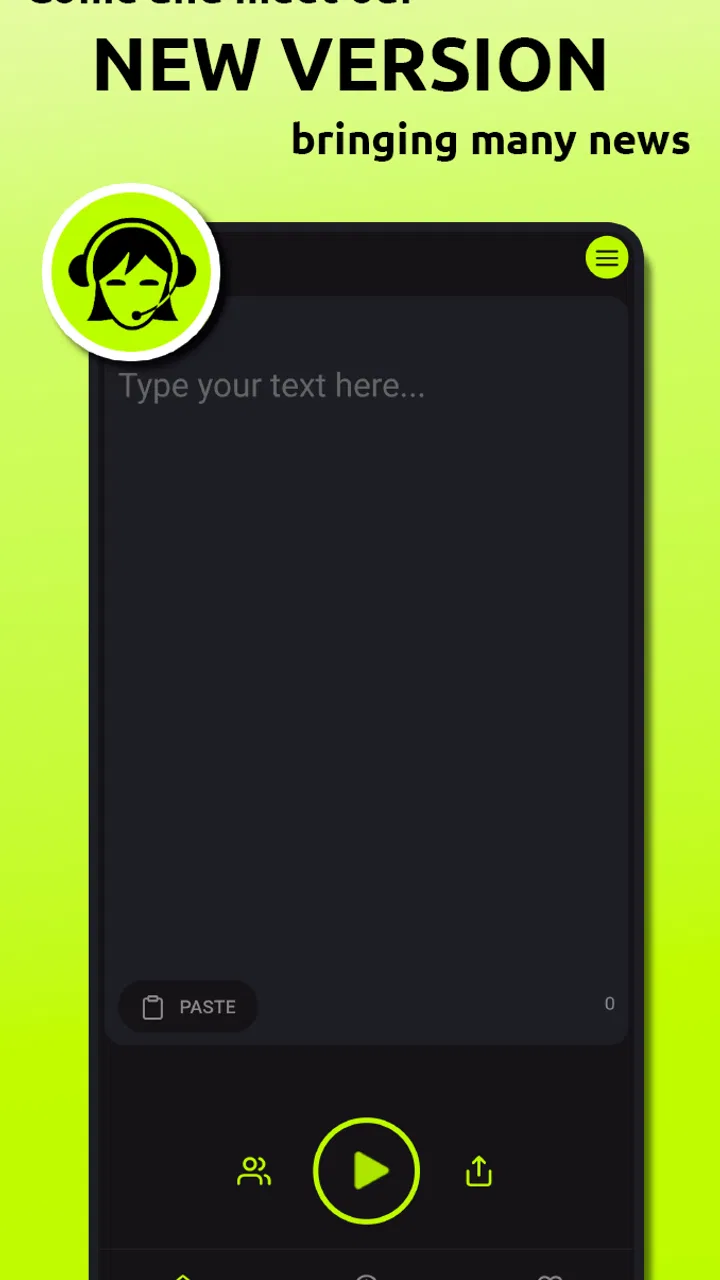
The first meaningful success is not merely hearing a sentence. It is creating a small piece of audio that you would realistically use again. For example, I might write a short message for a family member who prefers listening, generate the voice, and share the audio instead of sending a long paragraph. That test checks the full value of the app: text entry, speech generation, listening, and sharing.
For a practical everyday scenario, imagine that you are preparing a comic-related note, a short announcement, or a message while your hands are busy. You can write the wording in advance, listen for mistakes, revise the punctuation, and then send the spoken result. The benefit is not that the app creates a dramatic performance. The benefit is that it gives you a quick audio version without requiring you to record your own voice or open a separate audio editor.
I find the revision step especially important. Generated speech exposes awkward writing that can remain invisible when you read silently. If the voice pauses at the wrong point, I shorten the sentence. If a phrase sounds confusing, I replace it with simpler words. In that sense, the app can act as a basic proof-listening tool. It does not judge the quality of your writing, but hearing the words can reveal where a listener might lose the thread.
Once the short test works, I would move to a slightly longer passage and generate it in sections rather than treating a whole page as one uninterrupted block. Smaller sections are easier to review, replace, and share. They also make it simpler to locate a pronunciation problem. This workflow is more controlled than pasting everything at once, especially when the text includes headings, dialogue, symbols, or unusual formatting.
Where the app is genuinely useful
One strong use case is accessibility. Someone who finds extended reading tiring can use spoken output for short messages, notes, or selected passages. It can also help a person proofread text by listening to it, which is different from silently scanning the same words. I would not describe it as a complete accessibility solution for every document or device, but its direct text-to-audio purpose can remove a small yet meaningful barrier.
Another useful situation is language practice. I can write a sentence, listen to its rhythm, and compare the sound with how I expected it to be pronounced. This is more helpful for familiar phrases than for advanced study, because a generated voice does not replace a teacher or explain why a pronunciation is correct. Still, hearing the same sentence repeatedly can make it easier to notice stress and pauses.
The shareable audio angle is also practical for people who do not want to record themselves. A short generated message can be more personal than plain text while avoiding the background noise, hesitation, or privacy concerns that can come with a live voice recording. That makes the app a reasonable choice for quick communication, especially when the message is functional rather than emotional.
In the Comics category, I can see a particularly natural use for short dialogue, captions, or character lines. Listening to a line may help reveal whether it sounds too long for a speech bubble or whether the rhythm matches the intended character. I would use it as a rough audition tool, not as a final performance. If you need expressive acting, multiple character voices, sound effects, or detailed mixing, a dedicated audio application will be a better fit.
Common confusion and practical workarounds
The word “translator” in the short store description can create an expectation that the app will handle the entire translation process. I would separate those tasks in my mind. Translating meaning from one language to another and converting text into speech are different jobs. If your priority is accurate translation, especially for legal, medical, or sensitive communication, I would use a dedicated translation service and then bring the final wording into this app for listening.
Another possible confusion is assuming that offline voice generation means every language, pronunciation, and voice behavior will be identical without a connection. Offline speech is valuable, but voice quality can vary according to the language support and the speech resources available on the device. I would test the exact language pair and vocabulary you need while offline before travelling or using the app in a place where you cannot troubleshoot.
Text formatting can also produce unexpected results. Decorative symbols, repeated punctuation, web addresses, emoji, and long strings of numbers may be spoken awkwardly or interrupt the rhythm. My practical approach is to create a clean spoken version of the text first. I remove visual clutter, spell out anything that must be understood aloud, and use punctuation to guide pauses. This takes a little preparation, but it usually produces more natural audio than copying a visually formatted message without changes.
Users may also wonder whether the generated audio is suitable for professional publication. I would be cautious. For a private reminder, a shared message, a study aid, or an early creative draft, it can be perfectly adequate. For advertising, narration, public announcements, or a project where emotional delivery matters, I would compare it with a human recording or a specialized voice-production tool. The app is most convincing when convenience matters more than theatrical expression.
There is also a trade-off between speed and control. The app’s appeal is that it avoids a complicated recording process, but that simplicity can limit fine adjustments. If you need detailed control over timing, pronunciation dictionaries, multiple tracks, or precise audio editing, you may spend more time working around the app than using it. I would choose this tool for quick output and choose a dedicated editor when the audio itself becomes the project.
How it compares with the usual alternatives
The most obvious alternative is the text-to-speech function already built into a phone or operating system. Those built-in tools may be better for reading selected screen content continuously, while this app is more appealing when I want to prepare text specifically for spoken output and share the result. The choice depends on whether you need system-wide reading assistance or a focused text-to-audio workflow.
A translation app is another alternative, but it solves a different problem. Translation tools are usually the better choice when you need help understanding a foreign sentence, checking meaning, or communicating across languages. This app becomes more useful after the wording is already settled and you want to hear it or turn it into shareable audio. Using both types of tool in sequence can make more sense than expecting one to replace the other.
Voice-recording apps offer a more natural human tone and more emotional control. They are better when your personality, emphasis, or relationship with the listener matters. The trade-off is that recording takes more effort and may require retakes. Here, I can revise the text silently and generate another version without speaking into the microphone. For routine messages, that convenience is the main reason I would choose it over recording.
Specialized narration platforms can provide deeper controls and more polished voices, but they are often excessive for a short note or quick listening exercise. I would not pay for a larger toolset simply to convert a few sentences into audio. On the other hand, if you are producing a long-form project, need consistent character delivery, or require professional export options, the specialized alternative is likely the more sensible investment.
Who should use it, and who should skip it
I would recommend giving it a try if you want a low-friction way to hear written text, create occasional spoken messages, test dialogue, or listen to your own writing before sending it. It is also worth considering if offline voice generation is important to your routine and your phone runs Android 7.0 or later. The free entry point makes experimentation easy, provided you review any optional purchase before confirming it.
I would be less enthusiastic for someone who needs flawless translation, highly expressive narration, or advanced audio production. I would also hesitate if your main goal is continuous reading of every item on the screen, because the phone’s built-in accessibility features may provide a more integrated experience. People who are particularly sensitive to synthetic voices should test a realistic message first rather than relying on the app’s general promise.
For families, the Everyone content rating is reassuring, but that does not mean every generated message will be appropriate for every context. The rating describes the app’s audience suitability, not the content a user chooses to enter. I would still supervise younger users if they are sharing audio publicly or using text copied from unknown sources.
The next step after the first test
After the first successful conversion, I would create a small personal workflow: draft the text, simplify it for listening, add punctuation for pauses, generate the audio, listen once for pronunciation, and only then share it. This sequence prevents a common mistake—sending the first version before noticing that a name, number, or sentence break sounds wrong.
I would also keep two versions of important text: a clean written copy and a speech-friendly copy. The written version can preserve formatting, while the spoken version can spell out abbreviations and remove visual elements that do not make sense aloud. This is one of the most useful habits I found because it improves the audio without damaging the original message.
Before depending on the app away from home, I would perform one offline test with the exact kind of content I plan to use. I would generate it, listen to it, and confirm that the result is understandable without changing networks or settings. That small check is more valuable than assuming offline support will behave exactly as expected in every situation.
Overall, Translator Woman's Voice - TTS is a practical, focused app when the goal is to move from typed words to listenable audio with as little ceremony as possible. I like it most for short messages, proofreading, language practice, and early dialogue experiments. Its limitations become clearer with complex formatting, demanding pronunciation, professional narration, or serious translation work. Still, for a first-time user who wants a reassuring path from installation to a usable spoken message, it offers a sensible starting point. I would begin with a short sentence, test the voice offline, and decide from that real result whether its simplicity matches my needs.
FAQs for Translator Woman's Voice - TTS
01What is Translator Woman's Voice - TTS and how does it work?
Translator Woman's Voice - TTS is an app that converts text into speech using a female voice. It supports multiple languages, allowing users to input text and hear it spoken aloud. Ideal for those who need assistance with pronunciation or want to hear translations in a natural-sounding voice.
02Which languages does Translator Woman's Voice - TTS support?
The app supports a wide range of languages, including popular ones like English, Spanish, French, German, and Chinese. Users can select their preferred language for both the input text and the voice output, making it versatile for multilingual communication needs.
03Is Translator Woman's Voice - TTS free to use?
Translator Woman's Voice - TTS offers a free version with basic features. However, there may be in-app purchases or subscriptions required to unlock premium features, such as additional voices or enhanced translation capabilities. Check the app store listing for details on pricing and available features.
04Can I use Translator Woman's Voice - TTS offline?
The app primarily requires an internet connection to access the latest language data and perform translations. However, some features, like text-to-speech for previously downloaded languages, might work offline. It's best to check the app's settings or documentation for offline capabilities.
05How accurate are the translations provided by Translator Woman's Voice - TTS?
The app provides fairly accurate translations, utilizing advanced algorithms to interpret text. However, like any translation tool, it may not be perfect, especially with complex sentences or idiomatic expressions. It's advisable to double-check important translations for accuracy.
Pros
- User-friendly interface is intuitive.
- Supports multiple languages seamlessly.
- High-quality voice output is clear.
- Customizable voice settings available.
- Allows text import for quick translation.
Cons
- Ads can be intrusive during use.
- Limited offline functionality.
- Occasional voice lag issues.
- Requires internet for best performance.
- Some accents lack natural tone.

Translator Woman's Voice - TTS
Gallery